
Imagine waking up tomorrow to find that all your family photos, important documents, and years of work have vanished due to proper data backup strategies. For many Canberra businesses and residents, this nightmare becomes reality every year due to hard drive failures, ransomware attacks, accidental deletion, or even a simple coffee spill on a laptop.
At Local Geeks, we’ve helped small businesses and Canberra families to recover from data disasters – and we’ve seen firsthand how proper backup strategies could have prevented the stress, expense, and heartbreak of permanent data loss.
In this comprehensive guide, we’ll walk you through everything you need to know about protecting your digital life, whether you’re a home user in Belconnen wanting to safeguard family memories or a small business owner in Fyshwick needing to protect critical business data.
Why Data Backup is More Critical Than Ever in 2025
The Rising Threat of Ransomware in Australia
Australia has become one of the top targets for cybercriminals. As per ASD’s ACSC 2024-2025 report, potential malicious cyber activity went up by 83%. Small businesses and home users are particularly vulnerable because they often lack enterprise-level security measures.
Here in Canberra, we’ve seen a significant uptick in ransomware cases affecting:
- Home users who clicked on phishing emails
- Small businesses with outdated security software
- Contractors working with government agencies
- Medical and legal practices storing sensitive client data
The reality: If ransomware encrypts your files and you don’t have a backup, your only options are paying the ransom (which we never recommend) or losing your data permanently.
Hardware Failure: It’s Not If, But When
Every hard drive will eventually fail – it’s simply a matter of time. Traditional hard drives (HDDs) typically last 3-5 years, while solid-state drives (SSDs) can last longer but aren’t immune to failure.
Common causes of data loss we see at Local Geeks include:
- Mechanical failure – Hard drives have moving parts that wear out
- Power surges – Canberra’s summer storms can damage electronics
- Overheating – Dust buildup and poor ventilation (especially relevant in Canberra’s dry climate)
- Physical damage – Drops, spills, and accidents
- Software corruption – Failed updates or malware infections
Understanding the 3-2-1 Data Backup Rule
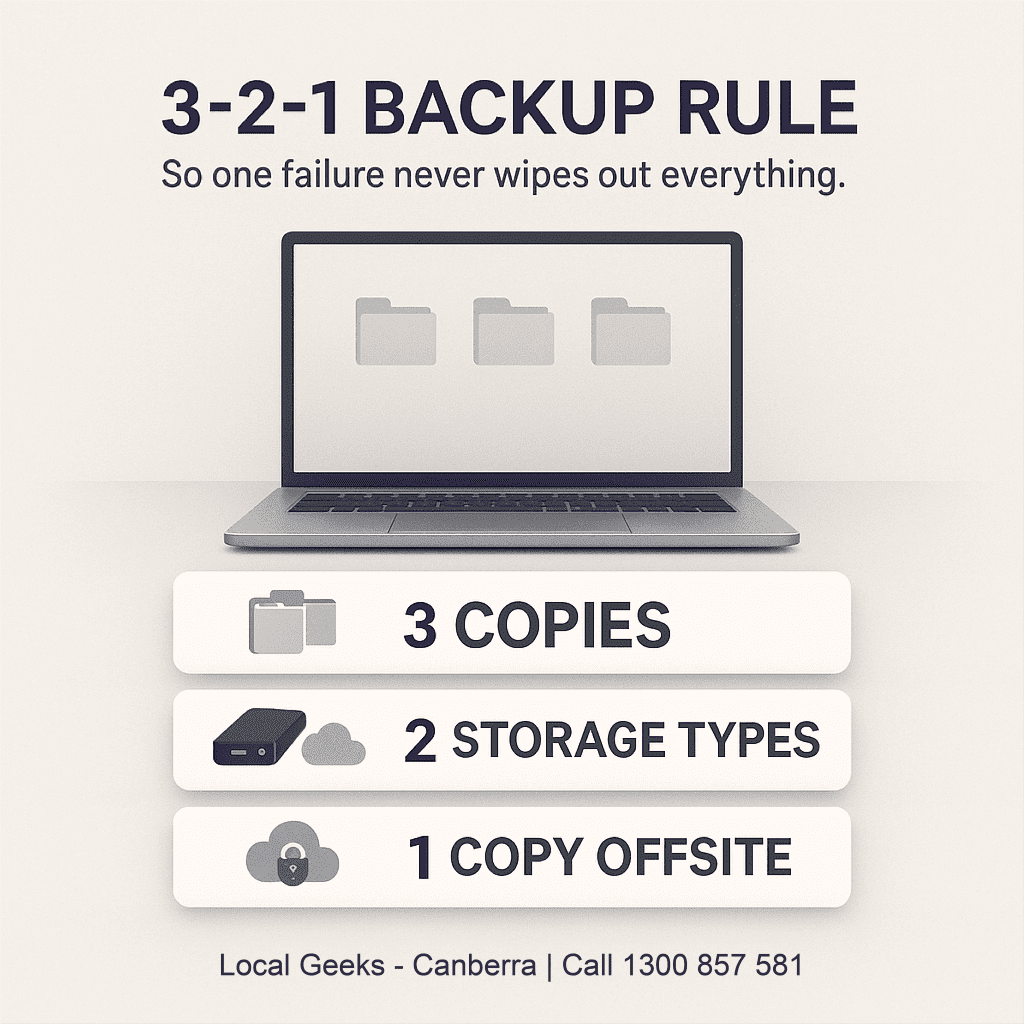
The gold standard for data protection is the 3-2-1 backup rule, used by IT professionals worldwide. It’s simple, effective, and provides multiple layers of protection.
- 3 copies of your data (1 primary + 2 backups)
- 2 different storage types (e.g., external drive + cloud)
- 1 copy stored offsite (cloud or physical location away from home/office)
Why Each Element Matters?
| Element | Protection Against |
| 3 copies | Single point of failure |
| 2 storage types | Media-specific failures |
| 1 offsite | Fire, flood, theft, natural disasters |
Practical Example for a Canberra Home and Business User
- Primary copy: Files on your laptop or desktop
- Local backup: External hard drive kept at home
- Offsite backup: Cloud storage (OneDrive, Google Drive, or iCloud)
This setup means even if your house floods during a Canberra storm, your cloud backup keeps your data safe. If your cloud account gets hacked, your local data backup has you covered.
Best Backup Solutions for Residential Users
Option 1: External Hard Drives
Best for: Large media collections, complete system backups, users who prefer physical control over their data
Pros: One-time cost, fast speeds, no subscription
Cons: Can fail, vulnerable to theft/fire if at home
Recommended products:
- Seagate Backup Plus (1TB-5TB) – Great for most home users
- Western Digital My Passport (1TB-5TB) – Reliable and portable
- Samsung T7 SSD (500GB-2TB) – Faster, more durable, but pricier
Canberra Tip:
Store your external drive in a fireproof safe or keep a second drive at a family member’s house for offsite protection.
Option 2: Cloud Backup Services
Best for: Automatic, hands-off backup; accessing files from anywhere; offsite protection
For cloud data backup, popular options include OneDrive, Google Drive and iCloud. OneDrive offers 5GB of free storage with the option to upgrade to larger plans, including around 100GB or even 1TB when bundled with Microsoft 365, making it ideal for Windows users and Microsoft 365 subscribers.
Google Drive provides 15GB of free space and paid tiers that increase storage to options like 100GB, 200GB or 2TB, which suits Gmail users and anyone on Android devices.
iCloud includes 5GB of free storage for Apple users, with upgrade paths to plans around 50GB, 200GB or 2TB, perfect for those who deeply use iPhone, iPad and Mac.
Paid storage options and availability can vary by region and plan, so it is always worth checking current details before choosing a service.
Canberra Consideration:
While cloud backup is excellent, remember that Canberra’s NBN speeds vary by suburb. If you’re on a slower connection in areas like Hall or Tharwa, initial uploads of large files may take considerable time. Consider doing large uploads overnight.
Option 3: Network Attached Storage (NAS)
Best for: Families with multiple devices, home media servers, tech-savvy users wanting advanced features
A NAS is essentially your own personal cloud server that sits in your home. All family members can back up to it automatically, and many NAS devices can also sync to the cloud for off-site backup.
Popular NAS options:
- Synology DS220+ – User-friendly, great for beginners
- QNAP TS-251D – Good multimedia features
- Western Digital My Cloud – Simple setup, affordable
Data Backup Solution for Small Businesses
Why Business Backup Requirements Are Different
Small businesses face unique challenges:
- Compliance requirements – Many industries have data retention obligations
- Client confidentiality – Legal and professional responsibilities
- Business continuity – Downtime costs money
- Multiple users – Coordinating backups across staff
Essential Business Backup Strategies
1. Server and Workstation Backup
If your business runs a server (even a small one), regular data backups are critical. Options include:
- Windows Server Backup – Built-in, free, basic functionality
- Veeam Backup – Industry-leading, excellent for small businesses
- Acronis Cyber Backup – Comprehensive protection with ransomware defence
2. Microsoft 365 Backup (Often Overlooked!)
Important!
Microsoft 365 (formerly Office 365) does NOT fully back up your data. Microsoft’s responsibility is keeping their service running – protecting your specific emails and files is YOUR responsibility.
Many Canberra businesses assume their SharePoint files and Outlook emails are automatically backed up. They’re not – at least not in a way you can easily restore.
Solutions:
- Backblaze B2 + CloudBerry – Cost-effective
- Veeam Backup for Microsoft 365 – Enterprise-grade
- Acronis Cyber Protect – All-in-one solution
3. Automated Backup Scheduling
Manual data backups don’t work for businesses – someone always forgets. Implement automated backups that run:
- Daily – For critical, frequently changed data
- Weekly – For less critical files
- Monthly – Full system images
4. Backup Testing and Verification
A backup is only valuable if it actually works. We recommend:
- Monthly: Verify backup jobs completed successfully
- Quarterly: Test restoring random files
- Annually: Perform a full disaster recovery test
Investing in proper backup is not an expense – it’s insurance for your business.
Step-by-Step: Setting Up Your Data Backup System
For Home Users
Step 1: Identify What Needs Backing Up
Start by listing your important data:
- Photos and videos
- Documents (tax returns, insurance, important PDFs)
- Music collection
- Email archives
- Browser bookmarks and passwords
- Software licence keys
Step 2: Choose Your Data Backup Methods
Based on the 3-2-1 rule, select:
Local backup option:
- External hard drive (most common)
- NAS device (for multiple family members)
Cloud backup option:
- OneDrive (if you use Windows/Microsoft 365)
- Google Drive (if you use Gmail/Android)
- iCloud (if you use Apple devices)
- Other cloud backup solutions (for complete computer backup)
Step 3: Set Up Automatic Backup
For Windows 10/11:
- Connect your external drive
- Go to Settings → Update & Security → Backup
- Click “Add a drive” and select your external drive
- Turn on “Automatically back up my files”
- Click “More options” to customise what’s backed up and how often
For Mac:
- Connect your external drive
- Go to System Preferences → Time Machine
- Click “Select Backup Disk” and choose your drive
- Time Machine will automatically back up hourly
For Cloud (OneDrive example):
- Sign in to OneDrive
- Right-click the OneDrive icon in your taskbar
- Go to Settings → Backup → Manage backup
- Select Desktop, Documents, and Pictures to sync automatically
Step 4: Verify Your Backup
After your first backup completes:
- Open your backup location (external drive or cloud)
- Navigate to a few important files
- Try opening them to confirm they work
- Set a calendar reminder to check monthly
For Small Businesses
Step 1: Audit Your Data
Document:
- Where critical data is stored (server, workstations, cloud)
- How much data you have (affects backup solution sizing)
- Who creates/modifies important files
- Any compliance requirements for your industry
Step 2: Define Recovery Objectives
RPO (Recovery Point Objective): How much data can you afford to lose?
- 1 hour? Daily backups won’t cut it
- 1 day? Daily backups are sufficient
- 1 week? Weekly backups may work (but we don’t recommend it)
RTO (Recovery Time Objective): How quickly do you need to be back up and running?
- Minutes? You need high-availability solutions
- Hours? Standard restore from backup
- Days? Basic backup may suffice
Step 3: Implement Your Data Backup Solution
Based on your needs, implement:
- Local server/NAS backup for fast recovery
- Cloud backup for disaster recovery
- Microsoft 365 backup if using cloud productivity tools
Step 4: Document and Train
Create documentation covering:
- What’s being backed up
- Where backups are stored
- How to restore files
- Who to contact if issues arise
Train relevant staff on:
- Not interfering with backup processes
- How to request file restoration
- Recognising backup failure notifications
Common Data Backup Mistakes to Avoid
Mistake 1: “I’ll Do It Later”
The most common backup mistake is procrastination. Data loss doesn’t announce itself – it happens suddenly and without warning.
Solution: Set up automatic backups today. Even an imperfect backup is better than no backup.
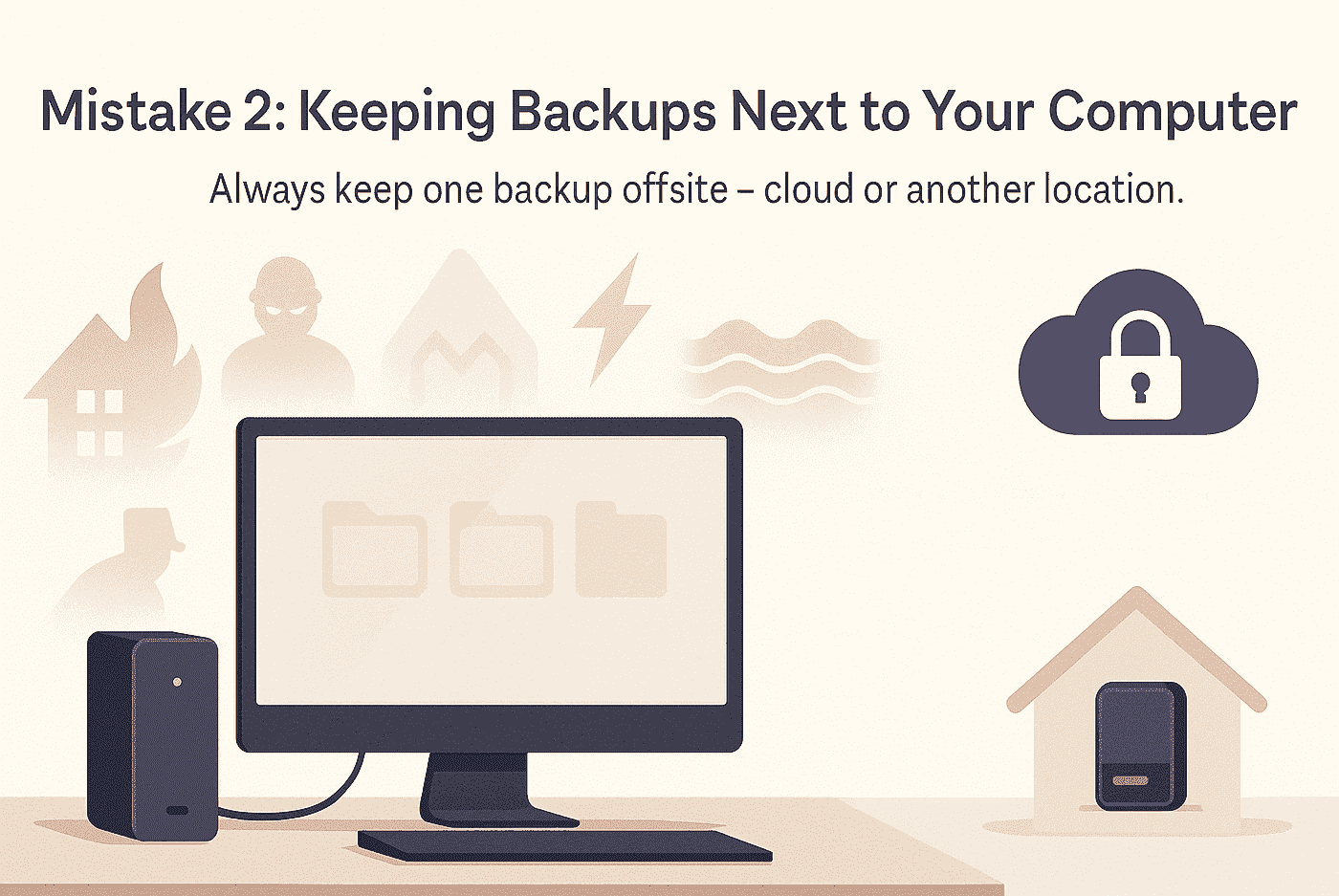
Mistake 2: Keeping Backups Next to Your Computer
An external drive sitting on your desk provides no protection against:
- House fire
- Burglary (thieves often take both)
- Flooding
- Power surge affecting both devices
Solution: Keep one backup offsite – use cloud storage or store a drive at a family member’s home.
Mistake 3: Never Testing Restores
Many people diligently back up for years, only to discover their backups are corrupted or incomplete when they actually need them.
Solution: Test restoring files quarterly. It only takes a few minutes and could save you from disaster.
Mistake 4: Relying Solely on Cloud Sync
Services like Dropbox and OneDrive sync files – they don’t truly back them up. If you delete a file or it gets encrypted by ransomware, that deletion/encryption syncs to the cloud too.
Solution: Use proper backup software in addition to sync services, and enable version history where available.
Mistake 5: Forgetting About Phones and Tablets Data Backup
Your phone likely contains:
- Thousands of photos
- Contact information
- Important text messages
- App data
Solution: Enable automatic phone backup:
- iPhone: Settings → [Your Name] → iCloud → iCloud Backup
- Android: Settings → Google → Backup
Mistake 6: Not Encrypting Sensitive Backups
If your backup drive is stolen, unencrypted data is fully accessible to whoever has it.
Solution: Enable encryption:
- Windows: Use BitLocker to encrypt external drives
- Mac: Time Machine can encrypt backups automatically
- Cloud: Use services with encryption, or encrypt files before uploading
What to Do If You’ve Already Lost Data
If disaster has already struck, don’t panic – but act quickly and carefully.
Immediate Steps
- STOP using the affected device – Continued use can overwrite recoverable data
- Don’t attempt DIY recovery on critical data – Improper recovery attempts can make things worse
- Note what happened – Did the drive fail? Was there a virus? Did you accidentally delete?
Recovery Options
For accidentally deleted files:
- Check the Recycle Bin/Trash first
- Files deleted from cloud services often have a recovery window (30 days for OneDrive)
- Data recovery software may help (Recuva, Disk Drill)
For failed hard drives:
- If the drive is clicking or making unusual noises, stop using it immediately
- Professional data recovery may be possible, but it can be expensive ($500-$3000+)
- Don’t attempt to open the drive yourself
For ransomware:
- Disconnect from the network immediately
- Don’t pay the ransom – there’s no guarantee of recovery
- Report to Australian Cyber Security Centre
- Professional help may be able to decrypt certain ransomware strains
How Local Geeks Can Help?
At Local Geeks, we understand that data backup can feel overwhelming – there are so many options, and the technical details can be confusing. That’s why we offer comprehensive backup services for Canberra homes and businesses.
Our Backup Services Include:
For Home Users:
- Backup Assessment – We’ll review your current setup and recommend improvements
- External Drive Setup – We’ll configure automatic data backups to your external drive
- Cloud Backup Configuration – We’ll set up and optimise your cloud backup solution
- NAS Installation – We’ll install and configure a NAS for your household
- Data Migration – Moving to a new computer? We’ll transfer and set up backups on your new device
For Small Businesses:
- Backup Strategy Consultation – We’ll design a data backup plan that meets your business needs
- Server Backup Implementation – Full server backup solutions with monitoring
- Microsoft 365 Backup – Protect your cloud data with proper backup solutions
- Disaster Recovery Planning – Be prepared for worst-case scenarios
- Ongoing Backup Management – Regular monitoring and testing to ensure your backups work
Conclusion
Data loss can happen to anyone – but with proper data backup practices, you can ensure it’s never more than a minor inconvenience.
Key Takeaways:
- Follow the 3-2-1 rule: 3 copies, 2 storage types, 1 offsite
- Automate your backups so you never forget
- Test your backups regularly to ensure they work
- Don’t wait until it’s too late – start today
Whether you need help setting up a simple external drive data backup or implementing a comprehensive business data backup strategy, Local Geeks is here to help. We’ve been helping Canberra residents and small business protect their data, and we’d love to help you too.
Because of Australian data regulations and industry compliance requirements, we recommend using local Australian datacentres for your data backups instead of sending data overseas. Storing your files within Australia helps with data sovereignty, reduces legal and compliance headaches, and makes it easier to meet requirements in sectors like healthcare, finance, government and professional services. It also improves reliability and performance, since backups are stored closer to your business, with lower latency and faster restore times if something goes wrong. By keeping your backup data inside Australian borders, you stay in better control of where your information lives, who can access it, and how it’s protected under local privacy laws.
Complete Data Backup Guide – FAQs
How often should I back up my data?
For most home users, daily automatic data backups are ideal. At a minimum, back up weekly. For businesses, critical data should be backed up at least daily, with some systems requiring hourly or real-time backup.
How much does cloud data backup cost?
Basic cloud storage starts at $2-3/month for 100GB. For unlimited computer backup, services like Backblaze cost around $9/month (USD). Business solutions vary based on data volume and features.
Is cloud backup safe?
Reputable cloud data backup services use strong encryption and security measures. The biggest risk is usually weak passwords or falling for phishing scams. Use strong, unique passwords and enable two-factor authentication.
How long does backup take?
Initial data backups can take hours or even days, depending on how much data you have and your internet speed. After the first backup, daily backups typically take only minutes as they only copy changed files.
Should I back up to an external drive or the cloud?
Both! Following the 3-2-1 rule, you should have both local (external drive) and off-site (cloud) data backups. Each protects against different risks.
My external hard drive is full. What should I do?
Options include: (1) Delete old backups you no longer need, (2) Upgrade to a larger external drive, (3) Add cloud backup for some of your data, or (4) Archive old files to a separate drive.
Can I back up my entire computer, including programs?
Yes, this is called a “system image” or “full data backup.” Windows and Mac both have built-in tools for this. System images allow you to restore your entire computer to exactly how it was, including all programs and settings.
What’s the difference between backup and sync?
Sync keeps files identical across devices in real-time. If you delete a file, it deletes everywhere. Backup creates copies at specific points in time. If you delete a file, you can restore it from an earlier backup. Sync is convenient for access; backup is essential for protection. Use both.
Ready to protect your data? Call Local Geeks on 1300 857 581 or book online for a backup assessment today.
