
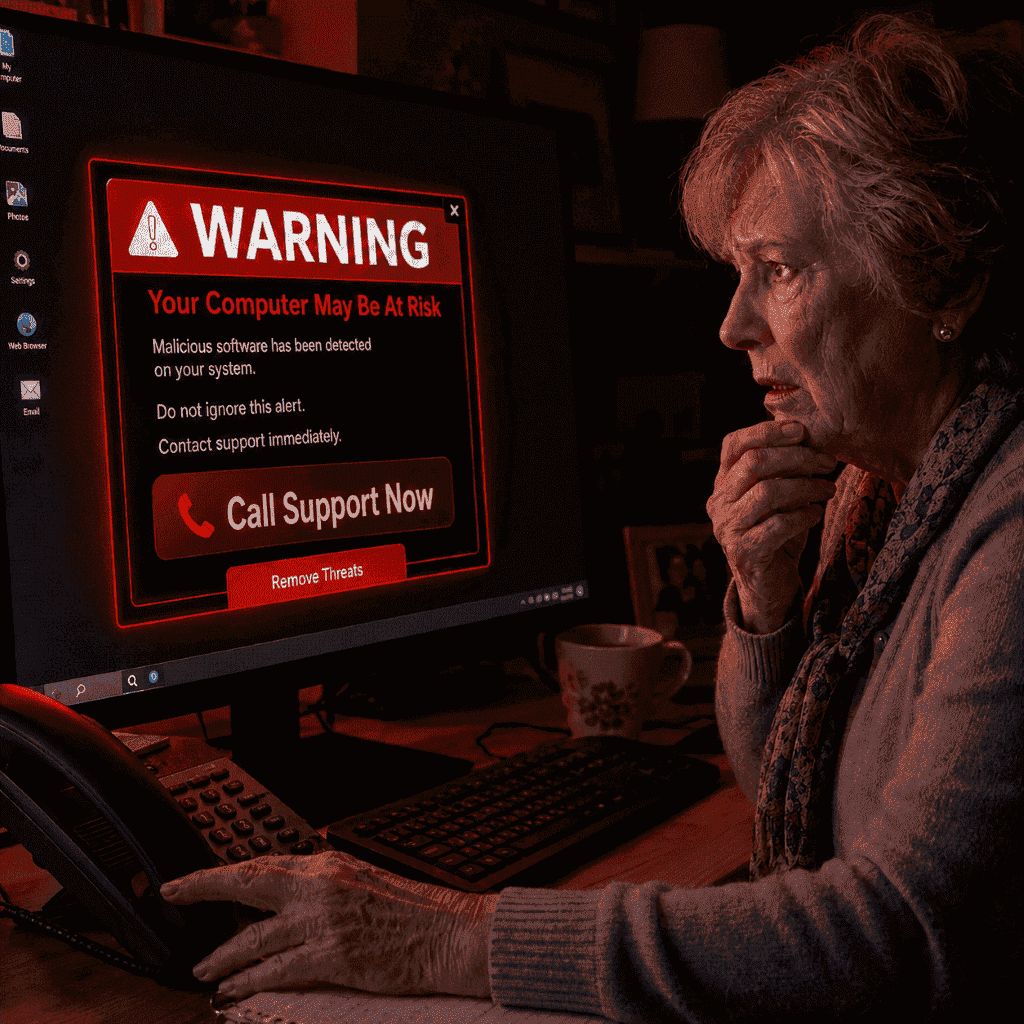
You’re browsing the web, checking your emails, or maybe just watching a YouTube video, and suddenly your screen fills with a bright red warning. A loud alarm starts blaring. Bold text tells you your computer is severely infected and your banking details are at risk. There’s a phone number to call. It says: “Do NOT turn off your computer. Call Microsoft Support immediately.”
Your heart races. You reach for the phone.
Stop. This is a fake virus pop-up scam.
It’s one of the fastest-growing cyber threats hitting Australians in 2026, and it’s designed to look and sound exactly real enough to make you panic. In this guide, we’ll show you how the fake virus pop-up scam works, how to spot it instantly, and exactly what to do if it happens to you (or already has).
Why this Fake Virus Pop-Up Scam is Everywhere Right Now
This isn’t a new trick, but it’s getting a lot harder to ignore. According to cybersecurity firm Gen’s H1 2026 Threat Report, fake tech support scams surged 68% in Australia in the first six months of 2026 alone. Remote access attacks – where scammers take over your computer – jumped 59% over the same period.
Australians reported $2.18 billion in total scam losses in 2025, and remote access scams consistently rank among the highest-loss categories. At Local Geeks, we’ve seen a noticeable uptick in clients coming to us after falling for one of these scams, often having lost hundreds or even thousands of dollars, and needing urgent help to clean their computer and secure their accounts.
The reason these scams are so effective? They’re not trying to hack your computer in the traditional sense. They’re hacking your emotions.
What a Fake Virus Pop-Up Scam Actually Looks Like
The fake pop-up usually appears while you’re browsing a normal website, sometimes triggered by a dodgy ad, a misleading link, or an infected browser extension you may not even know you have.
Here’s what typically appears on screen:
- A full-screen alert styled to look exactly like a Microsoft Windows warning or an Apple security notice, complete with logos and official-looking error codes
- A message claiming your computer is infected with a dangerous Trojan, Spyware, or Ransomware
- A statement that your “passwords, banking details, and personal files are at risk”
- A phone number to call for immediate support
- In many cases, a loud alarm sound that won’t stop, or a countdown timer, or a text warning you that closing the window will cause permanent data loss
Here’s the critical thing to understand: this is a webpage, not a real Windows alert.
Real Windows Defender warnings appear as small notifications in your system tray, in the bottom-right corner of your screen. They never appear as a full-screen browser pop-up. They never play alarm sounds. They never display a phone number to call. If you see a virus warning with a phone number inside your web browser, it is always a scam, no exceptions.
How the Scam Unfolds After You Call
If someone calls the number after a pop-up scam, here’s what typically happens:
Step 1 – The “technician” answers professionally. They introduce themselves as a Microsoft, Windows, or antivirus support agent. They sound calm, helpful, and credible.
Step 2 – They ask for remote access. They’ll guide you to download a legitimate remote access program – usually AnyDesk, TeamViewer, or Windows Quick Assist. These are real tools used by genuine IT professionals, but in this context they hand control of your computer to a stranger.
Step 3 – The “diagnosis.” Once connected, the scammer opens Windows Event Viewer or Command Prompt – real Windows tools that display system logs. They point to normal background entries that appear in every single Windows computer and claim they’re signs of a severe infection. To someone without a technical background, it looks convincing.
Step 4 – The bill arrives. After creating enough fear, they offer to fix the problem, for a fee. This could be anywhere from $200 to over $1,000, paid by credit card, bank transfer, or gift cards – a major red flag.
Step 5 – The real damage. While they have remote access, scammers may also be quietly searching for saved passwords, accessing your internet banking login page, copying personal documents, or installing actual malware that gives them ongoing access to your computer even after the session ends.
5 Dead Giveaways It’s a Fake Virus Pop-Up Scam
Once you know what to look for, a fake virus pop-up scam becomes very easy to spot:
- A virus warning appears inside your browser. Real operating system security alerts never appear inside a web browser window.
- There’s a phone number on the warning. Microsoft, Apple, and Windows do not display phone numbers on security alerts. Ever.
- Loud alarm sounds that won’t stop. Legitimate warnings don’t play audio. This is a psychological pressure tactic.
- You’re asked to download remote access software. No legitimate tech company will cold-contact you and immediately ask you to install AnyDesk or TeamViewer.
- Payment is requested by gift card. No genuine business accepts payment via iTunes gift cards or Google Play cards. This is the clearest sign you’re being scammed.
What to Do If It Happens to You (Right Now)
Don’t call the number. Don’t panic. Here’s what to do:
If the pop-up just appeared and you haven’t called anyone:
- Do not call the number on screen. No matter how scary the message looks.
- Try to close the browser tab – press Ctrl + W (Windows) or Cmd + W (Mac).
- If the browser is frozen or the page won’t close, press Ctrl + Alt + Delete (Windows) and use Task Manager to force-quit your browser, or hold the power button to shut the computer off.
- Restart your computer normally. In most cases, the pop-up won’t return once you’ve closed the browser.
- Run a scan with Windows Defender (it’s free and built into Windows 11). Go to Settings → Privacy & Security → Windows Security → Virus & threat protection → Quick scan.
- Consider a second opinion scan with Malwarebytes Free, which catches things Defender can sometimes miss.
If you called the number and gave them remote access:
This is more serious, but there’s a clear path forward. Act quickly:
- Disconnect from the internet immediately – unplug your Ethernet cable or turn off your Wi-Fi. This cuts off the scammer’s remote access.
- Uninstall any remote access software they had you install (AnyDesk, TeamViewer, Quick Assist sessions, etc.).
- Change your passwords from a different device (your phone or another computer), especially email, internet banking, MyGov, and any accounts saved in your browser.
- Call your bank and let them know what happened. They can flag your account for suspicious activity and reverse unauthorised transactions if caught quickly.
- Run a full malware scan, or better yet, bring the computer in to a trusted local tech. You need to confirm no backdoor software was installed during the session.
- If you paid money, contact your bank immediately about a fake virus pop-up scam. If you paid by gift card, contact the card issuer – recovery is possible in some cases if you act fast.
What About If You’ve Already Paid?
Don’t be embarrassed, these scams are professionally designed to deceive people, and they catch out people of all ages and technical backgrounds. The most important thing is acting quickly.
- Credit or debit card payments: Contact your bank and request a chargeback. Explain you were the victim of a scam. Act within 24 – 48 hours for the best chance of recovery.
- Bank transfers: Report it to your bank and to Scamwatch (scamwatch.gov.au). Recovery isn’t guaranteed, but the sooner you report, the better.
- Gift cards: Contact the gift card issuer (Apple, Google, etc.) immediately and explain you were scammed. Some issuers have processes to freeze unused balances.
- Report the scam to the Australian Cyber Security Centre at cyber.gov.au/report and to Scamwatch, as your report helps protect other Australians.
Who Gets Targeted?
Anyone can be a target of a pop-up scam, but scammers particularly focus on:
- Older Australians who may be less familiar with what legitimate Microsoft warnings look like
- People in a rush – the alarm sounds, and countdown timers are designed to prevent you from stopping to think
- Small business owners who can’t afford downtime and panic when their computer appears compromised
- Anyone who has recently searched online for tech support – scammers sometimes buy ads that appear at the top of Google when you search “Microsoft support” or “Windows help”
If you have elderly family members or less tech-savvy friends, share this article with them. It could save them a lot of money and stress.
You may also like: How Hackers Target Everyday Australians
Protecting Yourself Going Forward
A few simple habits can stop this pop-up scam before it starts:
- Use an ad blocker like uBlock Origin (free browser extension), which blocks most of the malicious ads that trigger these pop-ups in the first place
- Keep Windows and your browser up to date, as security patches close the vulnerabilities that let scam pages behave more aggressively
- Install a reputable browser extension like Malwarebytes Browser Guard, which blocks known scam pages before they load
- Talk to your family about what a real Windows alert looks like, and that Microsoft will never call them or display a phone number on screen
- When in doubt, call a local tech you trust before calling any number that appears on your screen
Already Been Affected by a Pop-Up Scam? Local Geeks Can Help.
If you’ve fallen victim to a fake virus pop-up scam and had someone connect to your computer remotely, it’s important to have your PC thoroughly checked by a professional. We’ll scan for any backdoor software or malware that may have been installed, check your system logs to see exactly what was accessed, and make sure your computer is completely clean before you use it for anything sensitive again.
Local Geeks serves Canberra, Queanbeyan, and surrounding areas. We offer same-day service for scam-related computer issues, and we’ll give you a straight answer about what happened and what needs to be done – no upselling, no jargon.
